 BillsOn
Manage your bills
Find a bill, pause a series or set amounts for future dates.
Find a bill and use the calendar
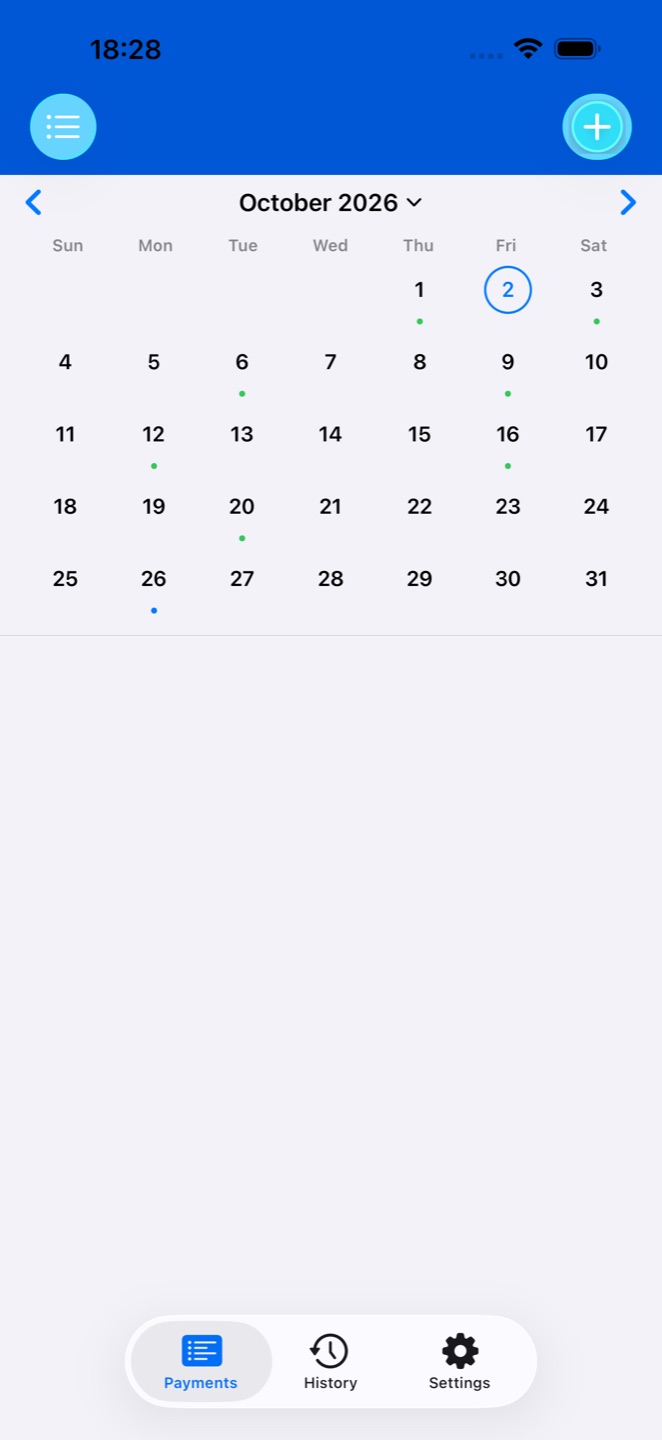
Open Payments. The selector above the list switches between active bills, paused bills and the archive. Use search to find a title.
On Calendar, choose a month and tap a day. Open a bill below the calendar to view its details or record a payment.
The calendar accounts for recurrence and weekend adjustments. Paused, archived and subscription-disabled bills are excluded from the active schedule.
Skip one payment or pause a series
To skip the next payment, open its details → Skip Payment and confirm. A Skipped record is added to history and the schedule is recalculated. This does not record spending.
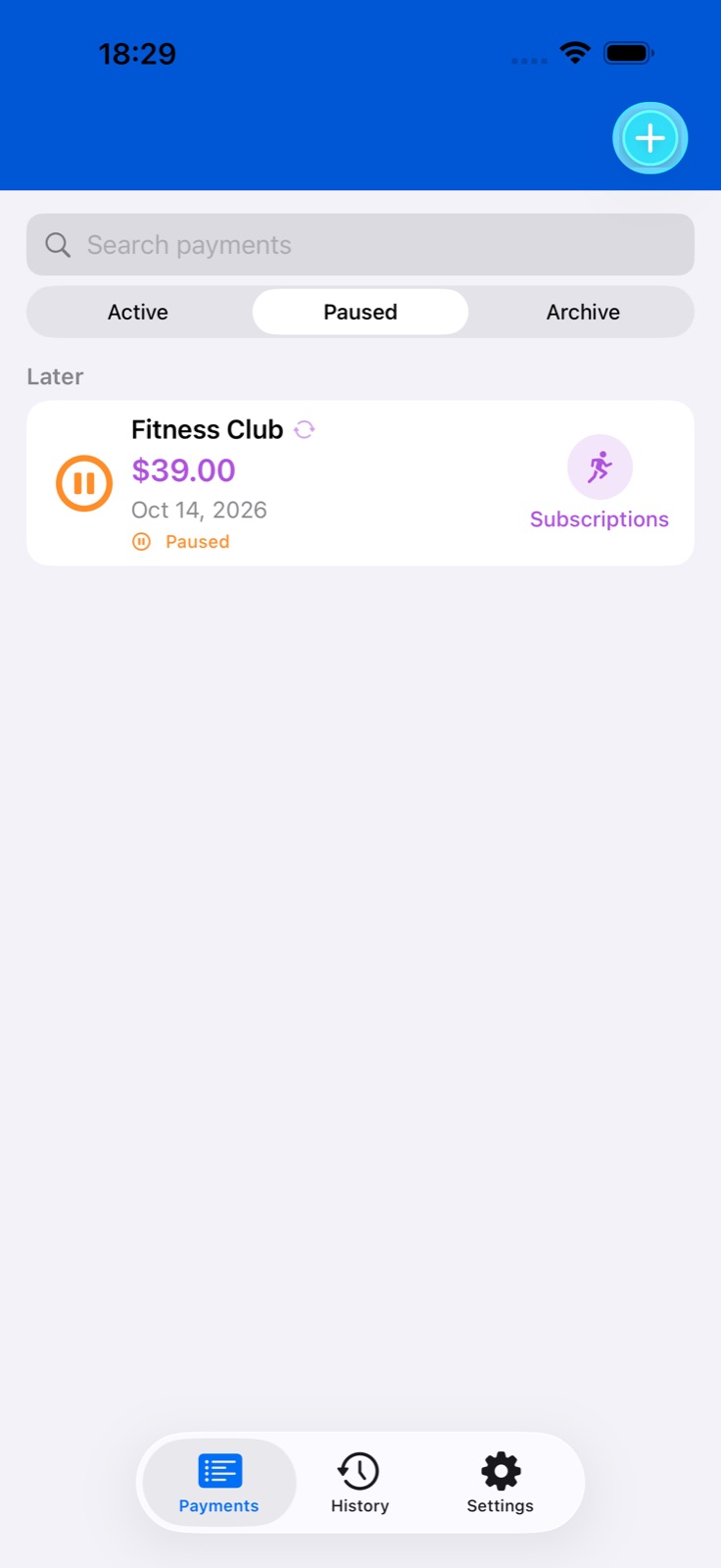
To temporarily stop a recurring bill, tap Pause in its details. Reminders are cancelled and the bill moves to the paused list.
To resume, open the bill in the paused list and tap Resume. Resuming may require a free slot within your active-payment limit.
Archive, duplicate or delete
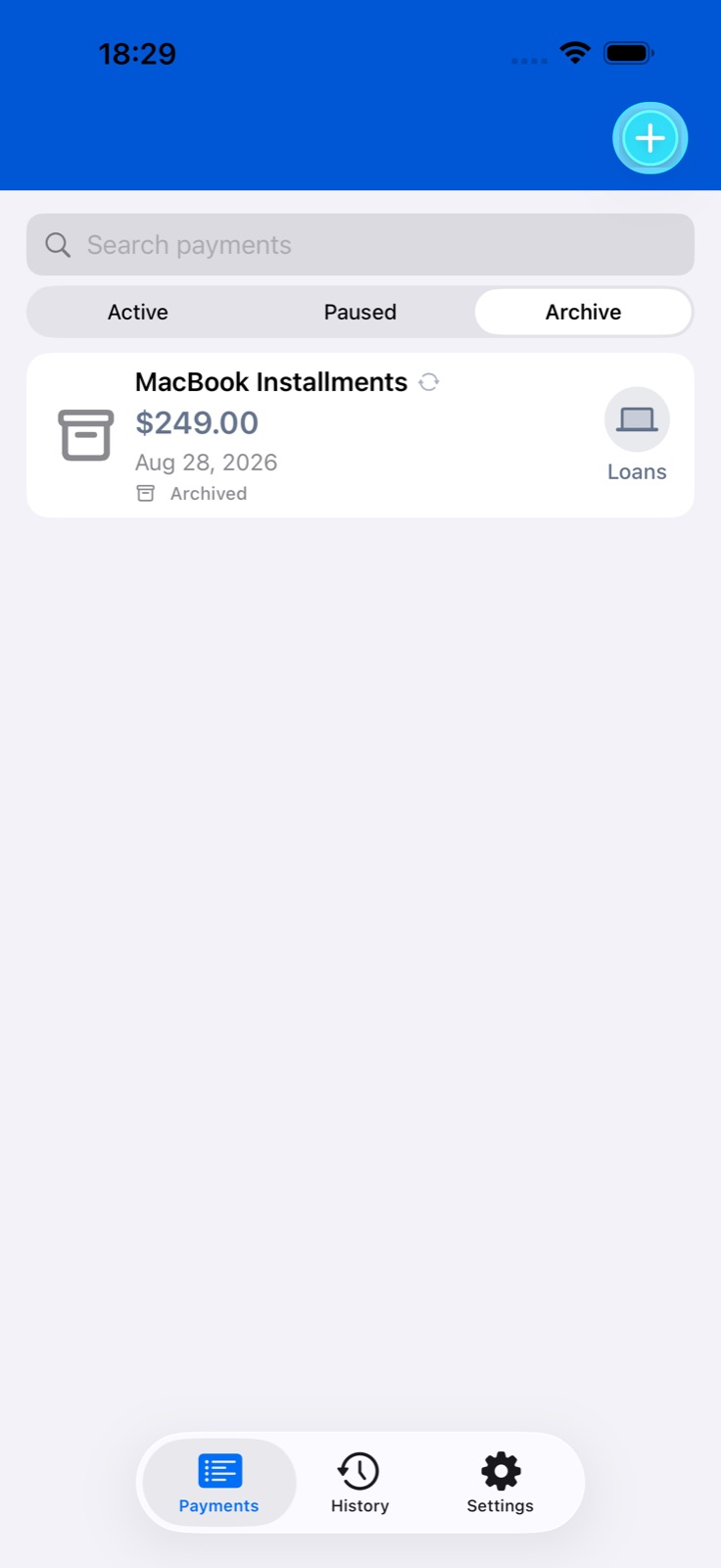
If a bill is no longer needed in the active list, open its details → Move to Archive and confirm. The record stays in the archive and its reminders are cancelled.
To bring it back, open the archived bill → Restore from Archive. The schedule is recalculated. A fully paid one-time bill has no restore button.
Duplicate creates a separate bill using the original settings. Review the new title, amount and date. A duplicate also requires a free slot.
Delete at the bottom removes the bill after confirmation. Use pause or archive when you only want to remove it from the active list.
Different amounts for different dates
Create an ordinary bill with amount 0, or change an existing bill’s base amount to 0. This workflow is not used for loans.
Open the bill and find the scheduled-amounts section. Tap the button to set amounts: the editor lists upcoming dates based on recurrence.
Enter an amount next to each relevant date and save. You can prepare different utility bill amounts in advance. To change only the next amount, you can also edit the bill and choose Only this.
Templates, categories and attachments
When adding a bill, tap Use Template, choose an option and review the filled fields. A template is a starting point; check the amount and date before saving.
Open the category picker. Choose a built-in category or add your own with a name and icon; use its row’s edit control to change it later.
Add attachments from Photos, the camera or PDF files. Tap a filename in payment details to open the system sharing menu. Attachments for a particular payment can also be added and changed in its history record.