 BillsOn
Your first bill.
A few simple steps.
Add a bill, choose its date and set a reminder. The other details can wait.
Add your first bill
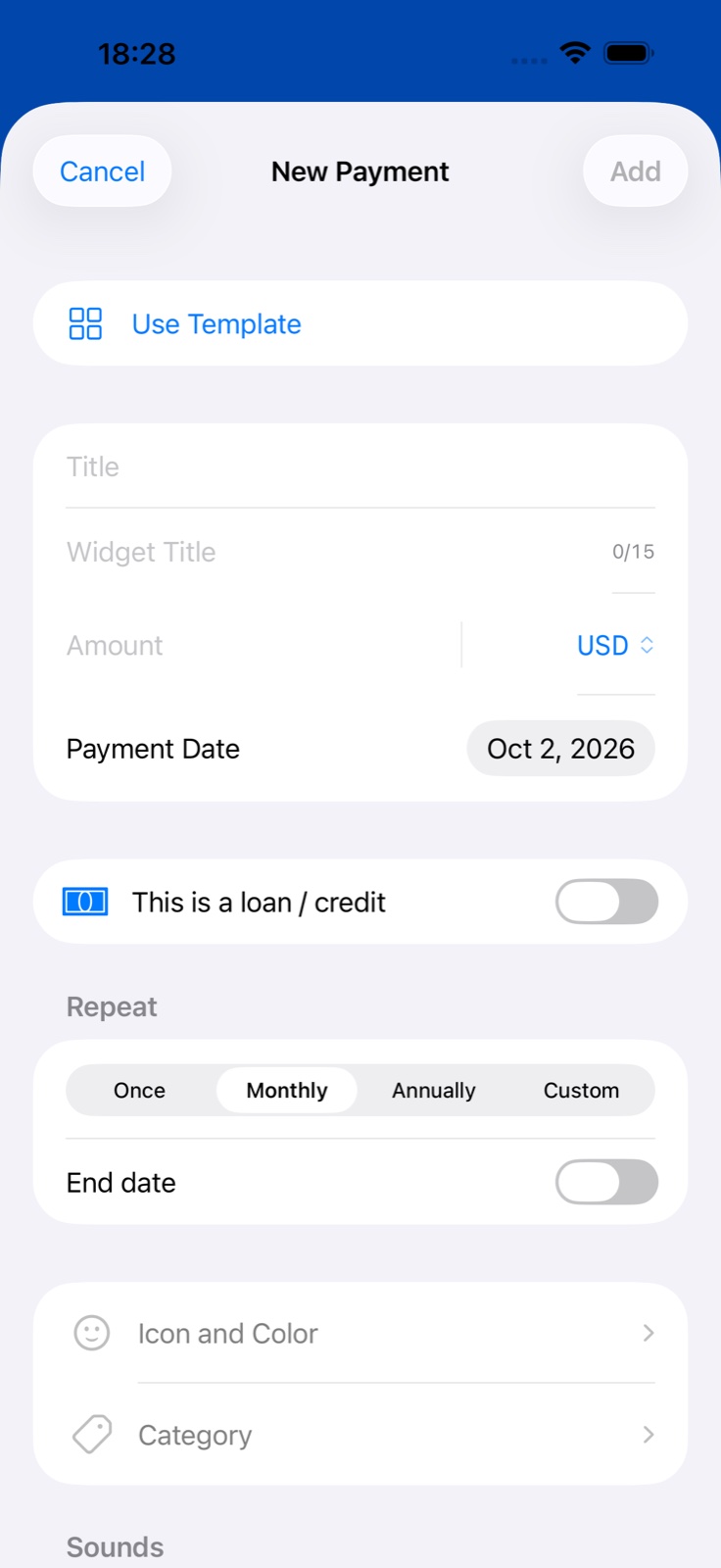
Open the form
Tap + on the Payments tab to create a payment.
Enter the essentials
For example: Apartment rent, 1,450 in your currency, and the next due date. You can keep the suggested short widget title.
Choose how often it repeats
Use Monthly for rent or Once for a one-off bill. Custom supports other intervals, such as every 2 weeks.
Save the bill
Tap Add at the top. Category, color, notes and attachments can be added now or edited later.
Get a reminder when you need it
Choose a preset
In Sounds, choose a reminder profile. Day before reminds you the previous day and on the due date at 09:00.
Or choose your own time
Expand Advanced and enable Custom reminder. Select lead days and a time; these replace the preset schedule.
Allow notifications
Allow BillsOn notifications on iPhone. Focus and sound settings can silence them.
I want to use my own sound
Open sound settings
Import a file under Notification Sound or Alarm Sound.
Choose the clip
Set the start and end, preview and save. Fade in and out is optional.
Check the payment profile
A sound profile can override the global sound. Custom reminder uses the global notification sound.
All reminder settings
Start with a reminder profile in Sounds. The built-in “Day before” profile includes the previous day and the due date at 09:00. Three-day and week profiles also include the due date.
For one payment, enable Advanced → Custom reminder. Choose the due date or 1, 2, 3, 4, 5, 6, 7, 10, 14 or 30 days before it, then set the time. The editor initially selects the previous day and due date. Reminder Text is plain text, not a placeholder editor.
Custom reminder overrides the profile’s days and time and uses the app’s global notification sound. The alarm sound can still come from the sound profile.
- Open Settings and sound settings.
- Choose a built-in sound or import a file under Notification Sound or Alarm Sound.
- Select the start and end of the clip and preview it; optionally enable fade in and out.
- Save it. Imported sounds can be selected, renamed or deleted.
- If a payment has a sound profile, check its sounds too: the profile can override the global selection.
Notification permissions, Focus and system settings affect delivery. On-screen alarms require a supported iOS version and the relevant permission.
Edit a bill or mark it paid
Edit the details
Open the bill, tap the pencil and save your changes.
Choose the scope
Changing a recurring amount, date or frequency opens Only this / This and future. The first changes the next amount or date; the second changes the series.
Record a payment
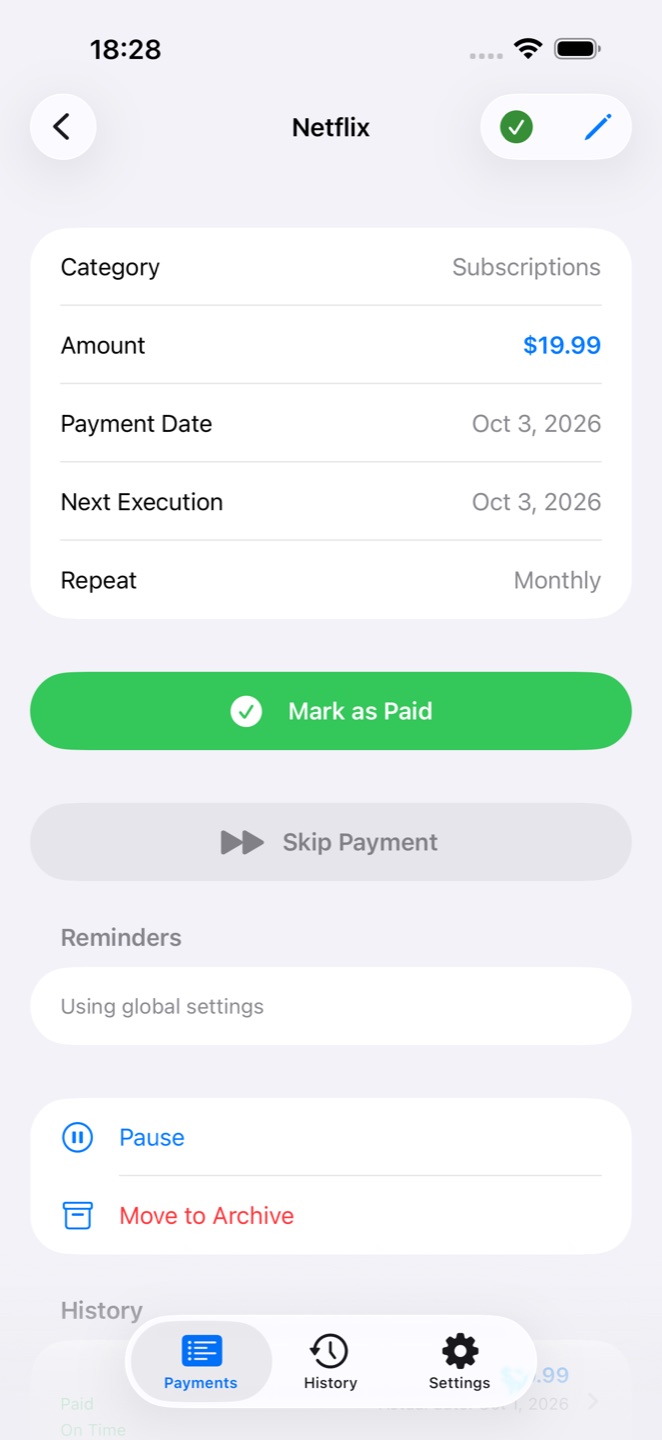
Tap the green check or Mark as Paid in details. Review the actual amount and date, or enable partial payment.
Confirmation and early repayment
Tap the green check in the list or Mark as Paid in details. Confirmation lets you change the recorded amount and date, enable partial payment and add attachments. Loan payments also support early repayment with a shorter term or lower payment. BillsOn records the payment; it does not transfer money.
Confirmation is skipped if enabled for the payment or globally. Turn off both options to review details before recording a payment.
Make it work for you
The essentials are enough for an ordinary bill. Open an explanation when you need more control.
Name
Full name in the list and payment details. It must not be empty after spaces are trimmed.
Widget Title
Short label of up to 15 characters. Initially generated from the full name; after a manual edit it no longer follows changes to the full name.
Amount and currency
The amount due and its currency. A decimal comma or point can be used. Manage Currencies lets you search, add, remove and reorder your selected currencies.
Due date
The planned date and the starting point for recurring schedules. Weekend rules can move the next due date.
Repeat
The creation form offers Once, Monthly, Yearly and Custom. Custom uses an interval of 1–365 days, weeks or months; for example every 2 weeks.
End date
Available for recurring payments. Enable it to end a series; it cannot precede the payment date.
Loan
Opens loan fields and hides the ordinary recurrence section when creating a loan. The payment amount is calculated from loan details.
Icon and color
Appearance of this payment. Its category can supply a default icon.
Category
A system or custom category used to group payments and spending insights.
Sounds: sound profile
Chooses notification and alarm sounds. Add and edit controls open the profile editor.
Sounds: reminder profile
Chooses lead days, time and reminder type. Custom profiles can include repetition and snooze intervals.
Payment Method
A text note such as “Transfer” or “Card”. It does not connect a bank or make a payment.
Provider Website
The provider’s website, accessible from payment details. The app does not automatically transfer money.
Attachments
A photo from the library, a camera photo when available, or a PDF from Files. Swipe an attachment row to delete it.
Advanced → Note
Extra information shown in payment details.
Advanced → Weekend adjustment
None, previous business day or next business day. When enabled, choose which weekdays count as weekends.
Advanced → Custom reminder
Payment-specific days, time and text. These days and time override the selected reminder profile; see the next section.
Advanced → Pay Without Confirmation
Records a full payment without opening confirmation. Leave it off to review the amount, date or use partial payment.
Adding a loan: which fields do I need?
Principal
Original loan amount. Hidden when prior-payment tracking is enabled.
Monthly payment
Optional manual amount. Leaving it empty uses the calculated amount; reset restores calculation. A warning appears when it is too low to cover interest and fees.
Rate
Annual interest rate as a percentage.
Term / End date
Choose a number of months or an end date as alternative ways to specify the term.
Start and first payment dates
Separate dates. Changing the start initially places the first payment one month later; it can be adjusted.
Monthly fee
A fixed amount, a percentage of original principal or a percentage of the remaining balance.
Payment type
Annuity or declining-principal calculation.
Prior payments
For an existing loan, enter remaining principal and principal and interest previously paid. The payment date becomes the next payment date.
If something does not work
Why is Add disabled?
Enter a name; an empty string or spaces do not count. A subscription offer after tapping Add indicates the active-payment limit.
Why did Widget Title stop following the name?
It was manually edited and now remains independent of the full name.
Why does the next due date differ?
Check recurrence and weekend adjustment. The next execution is calculated from the schedule and chosen weekend days.
Why is my sound not used?
Check the payment’s sound profile, Custom reminder, global sound and system permissions; these settings apply at different levels.
Why is a payment missing from the widget?
Widgets receive active payments. Paused, archived and subscription-disabled records are excluded. Also check widget size and row count.